
විවිධ වර්ගයේ USB Ports
USB-A ඉඳන් USB-C දක්වා විවිධ USB ports සහ connectors අතර වෙනස්ක
Laptop එකක side එක බලද්දී USB ports කිහිපයක් තියෙනවා. එකක් rectangular shape එකක්, අනික ටිකක් පොඩි oval shape එකක්. මේවට USB කියලා කියනවා.
මේවා අතර වෙනස මොකක්ද?
ඒ වගේම පරණ Android phone එකකට තිබුණේ Micro-USB. දැන් තියෙන phone එකට USB-C. Printer එකකට තවත් වෙනස් connector එකක්.
මේ හැම එකක්ම USB family එකට අයිති වුණත්, ඒවායේ physical shape, capabilities සහ supported USB standards වෙනස් වෙන්න පුළුවන්.
USB කියන්නේ මොකක්ද?
USB කියන්නේ Universal Serial Bus කියන එකේ short form එක.
Computers සහ electronic devices අතර data transfer කරන්න සහ power ලබාදෙන්න භාවිතා කරන standard port එකක් තමයි USB.
උදාහරණයක් විදිහට USB භාවිතා කරලා අපිට:
Keyboard සහ mouse connect කරන්න
Smartphone එකක් connect කරන්න
External hard drive එකක් connect කරන්න
Printer එකක් connect කරන්න
USB flash drive එකක් භාවිතා කරන්න
Game controller එකක් connect කරන්න
Headphones connect කරන්න
Device එකක් charge කරන්න
පුළුවන්.
Technology එක develop වෙද්දී USB connectorsත් පොඩි, වේගවත් සහ පහසු විදිහට වෙනස් වුණා.
USB ගැන දැනගන්න ඕනේ ප්රධානම දේවල් දෙක
USB ගැන කතා කරනකොට අපිට concepts දෙකක් වෙන වෙනම හඳුනාගන්න ඕනේ.
1. Connector Type
මේකෙන් කියන්නේ USB port එකේ physical shape එක.
උදාහරණ:
USB-A
USB-B
Mini-USB
Micro-USB
USB-C
2. USB Standard / Version
මේකෙන් කියන්නේ USB connection එකේ capabilities, විශේෂයෙන් data transfer speed වගේ දේවල්.
උදාහරණ:
USB 2.0
USB 3.2
USB4
මේ දෙක එකම දෙයක් නෙවෙයි.
උදාහරණයක් විදිහට:
USB-C = USB4 කියන එක වැරදියි.
USB-C කියන්නේ connector එකේ shape/type එක.
ඒ USB-C port එක USB 2.0, USB 3.x හෝ USB4 වගේ වෙනස් standards support කරන්න පුළුවන්.
මේක මතක තියාගන්න ලේසි analogy එකක් තියෙනවා.
Connector එක කියන්නේ පාරක physical shape එක නම්. USB standard එක කියන්නේ ඒ road එකෙන් කොච්චර traffic එකක් යවන්න පුළුවන්ද කියන එක වගේ.
1. USB-A
USB-A කියන්නේ අපිට ගොඩක් හුරුපුරුදු USB connector එක.
මේකේ තියෙන්නේ flat rectangular shape එකක්.
ගොඩක් කාලයක් තිස්සේ මේ connector එක computers සහ වෙනත් devices වල භාවිතා වෙනවා.
USB-A ports හම්බවෙන්න පුළුවන්:
Desktop computers
Laptops
TVs
Game consoles
USB chargers
Keyboards
Mice
USB flash drives
උදාහරණයක් විදිහට, සාමාන්ය USB flash drive එකක් computer එකකට connect කරනකොට බොහෝවිට භාවිතා වෙන්නේ USB-A connector එකක්.
USB-A reversible නෑ
ඒ කියන්නේ හරි orientation එකට තමයි plug කරන්න ඕනේ.
USB-C ජනප්රිය වෙන්න හේතු අතර මේ reversible design එකත් වැදගත්.
2. USB-B

USB-B කියන්නේ ටිකක් වෙනස් shape එකක් තියෙන connector එකක්.
මේක සාමාන්යයෙන් square-like shape එකක් සහ angled corners තියෙනවා.
Modern devices වල මේක අඩුවෙන් දකින්න ලැබුණත්, printers සහ scanners වගේ devices වල මේ connector එක හොඳට භාවිතා වුණා.
උදාහරණ:
Printers
Scanners
සමහර audio equipment
පරණ external devices
උදාහරණයක් විදිහට traditional printer එකක් computer එකකට connect කරන cable එකක:
USB-A → USB-B
වෙන්න පුළුවන්.
USB-A පැත්ත computer එකට යනවා.
USB-B පැත්ත printer එකට යනවා.
3. Mini-USB
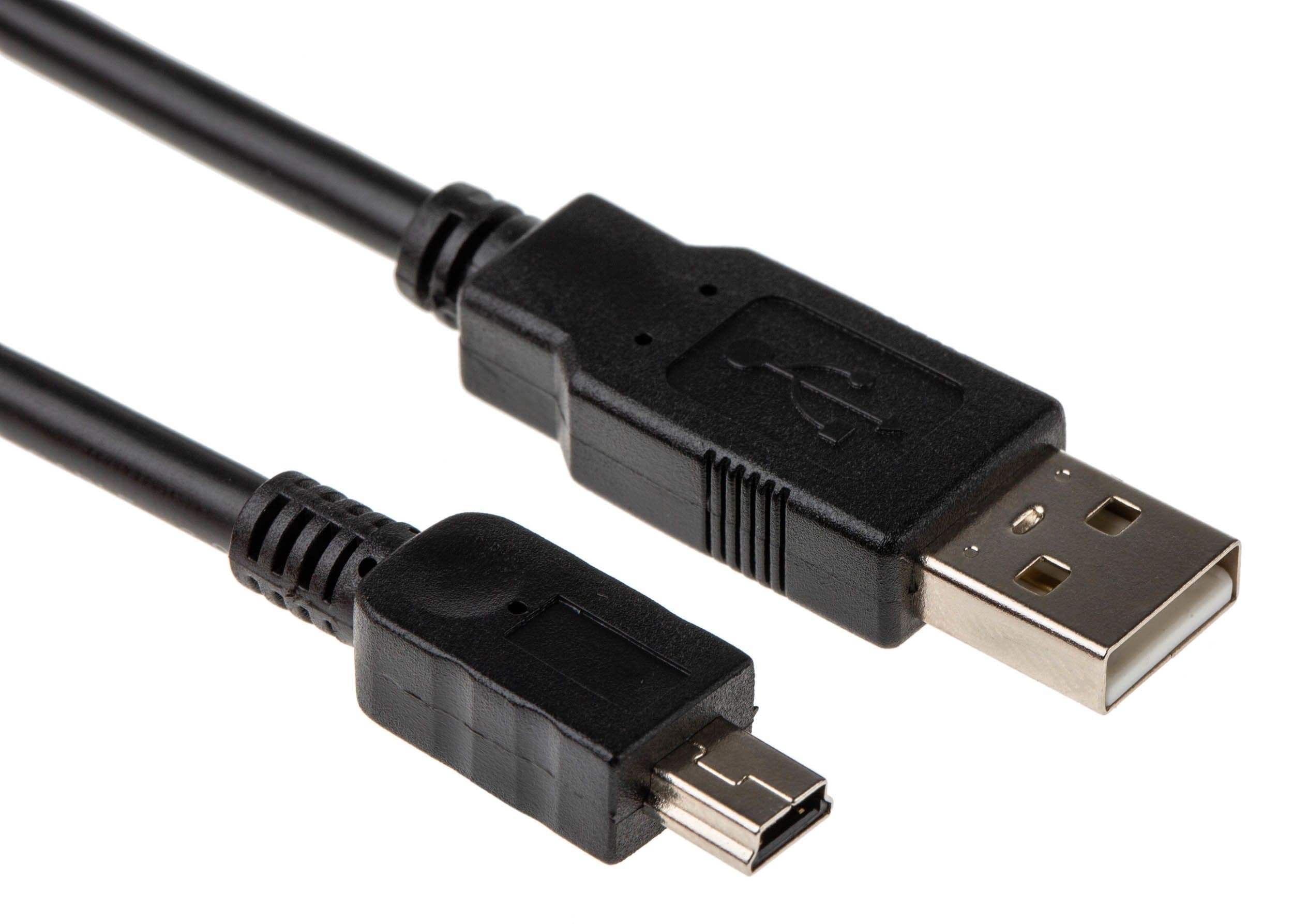
Micro-USB ජනප්රිය වෙන්න කලින්, පොඩි electronic devices වල Mini-USB ගොඩක් භාවිතා වුණා.
USB-A වලට වඩා මේක ගොඩක් පොඩියි.
Mini-USB හම්බවෙන්න පුළුවන් වුණේ:
පරණ digital cameras
GPS devices
MP3 players
පරණ mobile phones
වෙනත් small electronic devices
වගේ devices වල.
දැන් නම් Mini-USB වෙනුවට Micro-USB සහ USB-C වගේ connectors වැඩිපුර භාවිතා වෙනවා.
4. Micro-USB
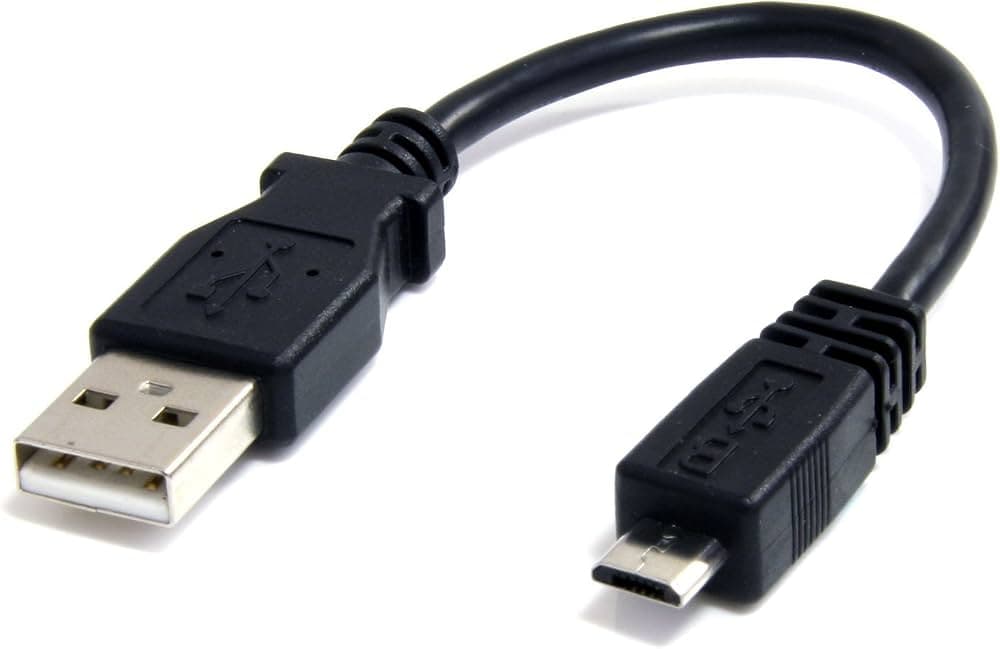
ඔයා පරණ Android phone එකක් භාවිතා කරලා තියෙනවා නම් Micro-USB connector එක හොඳට හුරු ඇති.
එක්තරා කාලයක Android phones වල මේක ගොඩක් common.
ඒ වගේම මේක භාවිතා වුණේ:
Power banks
Bluetooth speakers
Wireless accessories
Cameras
Controllers
වෙනත් small electronic devices
වලත්.
Micro-USB එකේ ප්රධාන limitation එකක් තමයි මේකත් reversible නෑ කියන එක.
ඒ නිසා cable එක හරි direction එකට plug කරන්න ඕනේ.
5. USB-C
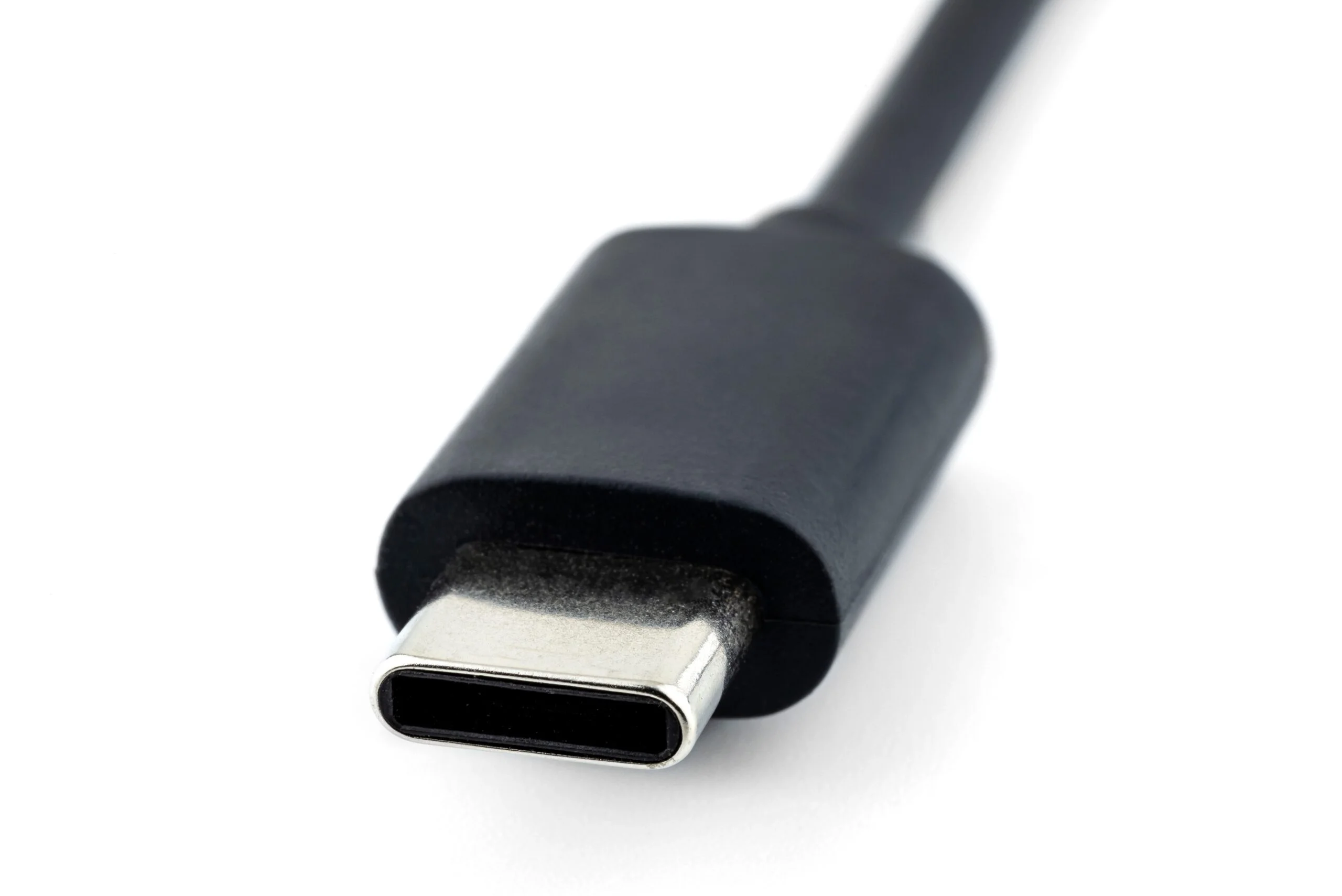
දැන් modern devices වල වැඩිපුරම දකින්න ලැබෙන USB connector එක තමයි USB-C.
මේක පොඩි, rounded rectangular shape එකක් තියෙන connector එකක්.
USB-A සහ Micro-USB වලට වඩා USB-C එකේ ලොකු advantage එකක් තමයි:
මේක reversible
ඒ කියන්නේ cable එක දෙපැත්තෙන් කොයි පැත්ත plug කළත් connect කරන්න පුළුවන්.
හැබැයි USB-C ජනප්රිය වෙන්න හේතුව මේක විතරක් නෙවෙයි.
Device එක සහ port එක අනුව USB-C හරහා:
High-speed data transfer
Charging
Video output
External displays
Docking stations
විවිධ USB standards
support කරන්න පුළුවන්.
උදාහරණයක් විදිහට modern laptop එකක එක USB-C port එකකින්:
Laptop එක charge කිරීම → External SSD එකක් connect කිරීම → Monitor එකක් connect කිරීම → Docking station එකක් connect කිරීම
වගේ වැඩ කරන්න පුළුවන්.
හැබැයි හැම USB-C port එකක්ම මේ සියල්ල support කරන්නේ නැහැ.
මේක ඉතා වැදගත්.
USB-C shape එක දැක්කා කියලා ඒ port එකේ සම්පූර්ණ capabilities අපිට තීරණය කරන්න බැහැ.
6. Micro-B USB 3.0
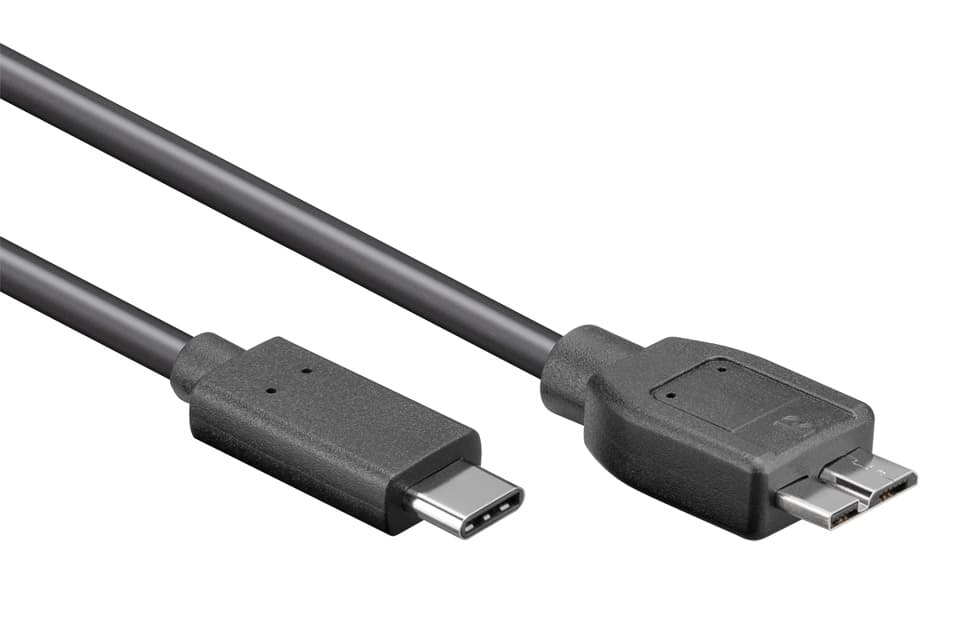
තවත් ටිකක් අමුතු පෙනුමක් තියෙන connector එකක් තමයි Micro-B USB 3.0.
මේක විශේෂයෙන් පරණ external hard drives වල දැකගන්න පුළුවන්.
සාමාන්ය Micro-USB එකට වඩා මේ connector එක පළලින් වැඩියි. ඒකේ additional section එකක් තියෙනවා.
පරණ portable external HDD එකක් computer එකකට connect කරනකොට මේ connector එකක් හම්බවෙන්න පුළුවන්.
Modern external SSDs සහ වෙනත් අලුත් devices වල නම් USB-C වැඩිපුර භාවිතා වෙනවා.
USB Connector Types
Connector | සාමාන්ය Shape එක | Common භාවිතයන් |
|---|---|---|
USB-A | Rectangular | Computers, keyboards, flash drives |
USB-B | Square-like | Printers, scanners |
Mini-USB | Small trapezoidal | පරණ cameras, GPS devices |
Micro-USB | Small, thin | පරණ phones, power banks |
USB-C | Small, rounded rectangle | Modern phones, laptops, tablets |
Micro-B USB 3.0 | Wide Micro-USB shape | පරණ external HDDs |
එහෙනම් USB 2.0, USB 3.0 සහ USB4 කියන්නේ මොනවාද?
මෙතන තමයි USB ගැන ගොඩක් දෙනෙක් confuse වෙන්නේ.
ඔයාට කෙනෙක් කියන්න පුළුවන්:
මේක USB 3.0 port එකක්.
මෙතන ඔහු port එකේ physical shape එක ගැන කතා කරනවා කියලා අනිවාර්යයෙන්ම අදහස් වෙන්නේ නැහැ.
USB 3.0 කියන්නේ USB standard එකක්.
USB-A සහ USB-C කියන්නේ connector types.
ඒ නිසා අපිට මේ වගේ combinations හම්බවෙන්න පුළුවන්:
USB-A + USB 2.0
USB-A + USB 3.x
USB-C + USB 2.0
USB-C + USB 3.x
USB-C + USB4
ඒ නිසා එකම USB-C shape එකක් තිබුණත්, devices දෙකක් අතර actual performance එක සම්පූර්ණයෙන් වෙනස් වෙන්න පුළුවන්.
සමහර USB Ports වල Colors වෙනස් ඇයි?
Computer එකක USB-A ports බලද්දී සමහර ports black, සමහර ඒවා blue වගේ වෙනස් colors වලින් තියෙනවා දැකලා ඇති.
සාමාන්යයෙන් manufacturers ලා USB capabilities හඳුනාගන්න පහසු වෙන්න port colors භාවිතා කරලා තියෙනවා.
උදාහරණයක් විදිහට blue USB-A port එකක් USB 3.x සමඟ සම්බන්ධ වෙලා ති.
Black ports බොහෝවිට USB 2.0 සමඟ සම්බන්ධ වෙනවා.
හැබැයි මේක universal rule එකක් නෙවෙයි.
Manufacturers හැමෝම එකම color convention එක follow කරන්නේ නැහැ.
ඒ නිසා port color එකෙන් විතරක් USB standard එක තීරණය කරන එක වෙනුවට device specifications බලන එක වඩාත් විශ්වාසදායකයි.
Connector එකද? Standard එකද?
ප්රශ්නය | අපි හඳුනාගන්නේ |
|---|---|
"මේ port එකේ shape එක මොකක්ද?" | Connector type |
"මේකෙන් data කොච්චර වේගයෙන් transfer කරන්න පුළුවන්ද?" | USB standard |
"මේක දෙපැත්තෙන්ම plug කරන්න පුළුවන්ද?" | Connector design |
"මේකෙන් laptop එක charge කරන්න පුළුවන්ද?" | Device/port power capabilities |
"මේකෙන් monitor එකක් connect කරන්න පුළුවන්ද?" | Supported display features |
ඒ නිසා:
USB-C නිසා මේක අනිවාර්යයෙන්ම fast.
කියන එක technical වශයෙන් සම්පූර්ණයෙන්ම හරි නෑ.
USB-C අපිට කියන්නේ connector එක ගැන.
Connection එකේ සම්පූර්ණ capabilities දැනගන්න device එකේ specifications බලන්න ඕනේ.
USB Cable එකක් ගන්නකොට මොනවාද බලන්න ඕනේ?
Cable එකක USB-C කියලා තිබුණාම ඒක device එකේ තියෙන හැම feature එකක්ම support කරනවා කියලා හිතන එක වැරදී.
Cable එකක් ගන්න කලින් බලන්න:
Connector type — USB-C, USB-A වගේ
Data-transfer capability
Charging / power capability
Video/display support අවශ්ය නම්
Device compatibility
උදාහරණයක් විදිහට laptop එකකට external monitor එකක් connect කරන්න USB-C cable එකක් ගන්නවා නම්, cable එක සහ relevant ports අවශ්ය display functionality එක support කරනවාද කියලා check කරන්න ඕනේ.
Did you find this article helpful?
Related Articles
Azure වලින් මොනවද කරන්න පුළුවන්?
Microsoft Azure කියන්නේ විවිධ විදිහෙ දේවල් ගොඩක් කරන්න පුලුවන් cloud platform එකක්.
මොනවද මේ Linux Shell වර්ග?
Linux වල තියෙන Bash, Zsh, Fish, Dash වගේ Shells අතර වෙනස්කම්
Flutter සහ React Native
Mobile App Development එකට හොද මොකක්ද?